




28th July 2026
Has this happened to you? You ask ChatGPT to plan a lesson, and the result is rubbish. So you spend the next five or ten minutes explaining who your students are, what level they’re at, where you teach, how long the lesson is, and what you actually want them to learn. The next version is a bit better, but the activities still feel wrong. There’s too much presentation and explanation, and not enough noticing or communication. Then there’s the formatting, with more line breaks than a LinkedIn post about a networking event that changed someone’s life. So you explain that too, and after about fifteen minutes, you finally get something workable.
That might be faster than planning the lesson yourself. But the frustrating part is that the next week you have to do it all again. And then again the week after that. Every new chat starts like a conversation with the protagonist from Memento. The AI knows everything about the French Revolution, quantum physics, and the complete works of Shakespeare, but somehow it doesn’t remember that your students are B1 teenagers who hate role plays.
This is where a custom GPT, Gemini Gem, Claude Project, or similar tool stops looking like a shiny toy and starts paying rent. Instead of starting with an amnesiac AI each time, you build your own AI lesson planning assistant. One that already knows your teaching context, your materials, your preferences, and the information you don’t want to type from scratch every week.
The Four Things You Need
To build a personalised lesson planning assistant, you need four things.
- Information about your teaching context
- Your coursebook, if you’re allowed to upload it, or your syllabus
- Some of your favourite activities and teaching preferences
- Examples of lesson plans in the format you want
Let’s look at each of these in turn.
1. Your Teaching Context
Tell the AI about who your students are. Are they children or adults? What level are they? How long are lessons? How many students are in each class? What are the students good at? What do they struggle with?
The more information the AI has about your students, the better its suggestions are likely to be.
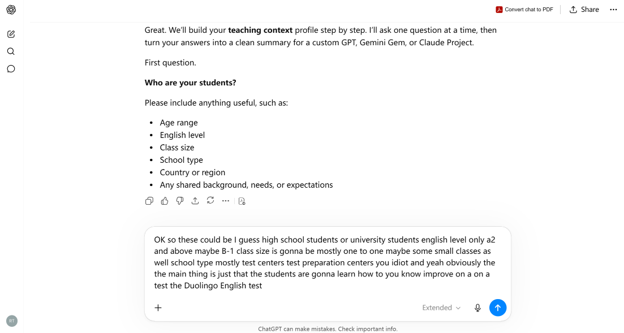
One useful approach is to get AI to interview you and create a teaching profile. Rather than trying to think of everything yourself, ask the AI to guide the process. In the end, you’ll have a document that explains your teaching context far more clearly than a few rushed notes typed into a chat window.
Prompt: Help me create a profile of my teaching context for a custom GPT, Gemini Gem, or Claude Project. Ask me one question at a time about my students, classes, teaching environment, lesson length, learning goals, common challenges, and teaching style. When you have enough information, create a detailed summary that I can upload into the custom AI chatbot.
You’ll only need to do this once. After that, you can add the profile to your custom GPT and the AI can use it whenever it helps you plan a lesson.
2. Your Coursebook or Syllabus
Once the AI understands your students, the next step is helping it understand what they’re learning. Most teachers spend years becoming familiar with their coursebook. They know which activities work well, which exercises students find difficult, and how topics connect from one unit to the next.
If you’re going to use AI to help plan lessons, it makes sense to give it some of that knowledge too.
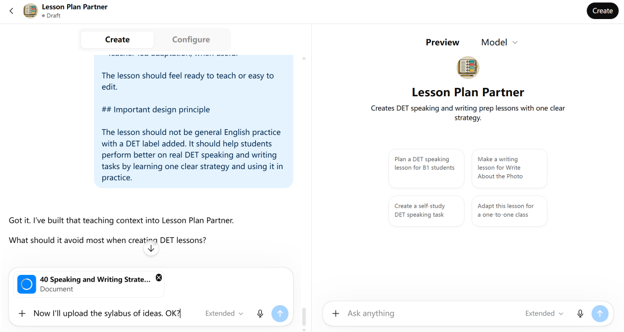
Depending on copyright restrictions, you may be able to upload coursebook pages, teacher’s notes, scope and sequence documents, assessments, or unit summaries. Even if you can’t upload the whole coursebook, uploading the unit aims can still be useful.
The point is not to replace the coursebook. The point is to stop explaining the same topic, grammar point, vocabulary focus, and learning goals every time. You can simply say something like, “I’m teaching page 47 tomorrow. Help me plan the lesson.” Because the AI already understands the coursebook, it can generate ideas, identify potential problems, and suggest supplementary activities.
Upload these documents to the custom GPT.
3. Your Favourite Activities and Teaching Preferences
One complaint teachers often have is that AI generates boring activities. It’s a bit like ordering from a food delivery app with a blindfold on. If the AI doesn’t know what you like, it will probably serve you something disappointing.
You can fix this by creating an activity bank. This does not need to mean uploading 50 worksheets from the last ten years. A simpler way is to get the AI to interview you.
Start by telling it three or four activities you often use. For example, maybe you like information gaps, dictogloss, running dictations, sentence auctions, disappearing dialogues, 'find someone who' activities, or tasks where students compare answers before checking with the teacher.
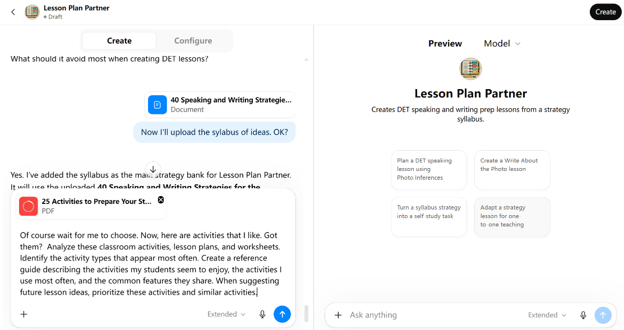
Then ask the AI to suggest more activities that fit the same teaching style. You can accept the ones you like, reject the ones you hate, and ask it to adjust the rest. After a few rounds, you should have a bank of 10 to 15 activities that feel like the kind of thing you would actually use in class.
Once you have that, ask the AI to turn the list into a short reference document. Later, you can upload that document into your custom GPT, Gemini Gem, Claude Project, or similar tool. Then, instead of asking, “Give me an activity for this grammar point,” you can say, “Create a practice activity for this grammar point using one of the ideas from my activity bank.”
That gives the AI a much better starting point. It is no longer guessing what you mean by a good activity. You have shown it the kind of teaching you want more of.
Prompt: Help me create an activity bank for my custom AI lesson planning assistant. Ask me one question at a time about classroom activities I often use, activities my students enjoy, activities I dislike, lesson stages I usually need help with, and the kinds of interaction I want in class. After I have described a few activities, suggest more activity types that seem to fit my teaching style. Ask me to accept, reject, or adapt each one. When we have about 15 useful activities, create a clear reference document that I can upload into a custom GPT, Gemini Gem, Claude Project, or similar tool. For each activity, include the activity name, when to use it, the student level it works best for, the lesson stage it fits, the interaction pattern, the preparation needed, and one example of how it could be used in a lesson.
Then, take your activity bank and add it to the custom GPT.
4. Examples of Lesson Plans in the Right Format
The AI also needs to know what you want the finished lesson plan to look like. This is not only about the teaching ideas. It is about the shape of the document.
Some teachers want a simple list of stages. Some need a school template. Some want timings, interaction patterns, aims, materials, problems, solutions, and homework. Some just want the plan to stop looking like it was attacked by a return key.
The best way to do this is to create a lesson plan format guide before you build the custom assistant. Take two or three lesson plans that look the way you want, upload them to a normal AI chat, and ask it to analyse the format. You are not asking it to plan a lesson yet. You are asking it to notice the structure.
For example, ask it to look at the headings, stage order, timing, level of detail, use of bullet points, wording style, teacher instructions, student interaction, materials, notes for problems and support, line breaks, and formatting.
Then ask it to turn that analysis into a short guide. Later, upload that guide into your custom GPT, Gemini Gem, Claude Project, or similar tool. You can also upload one or two sample lesson plans as examples, but the guide matters more. Examples are useful, but clear rules are better.
Prompt: Analyse these lesson plans and create a lesson plan format guide for my custom AI lesson planning assistant. Do not focus on the quality of the activities yet. Focus on the format. Identify the headings, lesson stages, timing style, use of bullet points, level of detail, wording style, line breaks, teacher notes, student interaction patterns, materials section, and any other repeated features. Then create a clear reusable guide that tells the AI how future lesson plans should be formatted. After that, create a short set of instructions I can paste into a custom GPT, Gemini Gem, Claude Project, or similar tool.
Putting It All Together
Once you’ve collected or created these four components, you can upload them into a custom GPT, Gemini Gem, Claude Project, or similar tool.
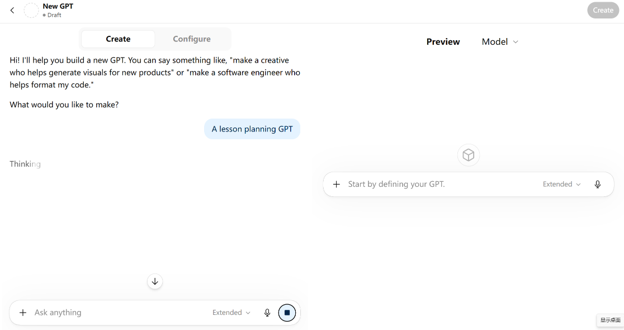
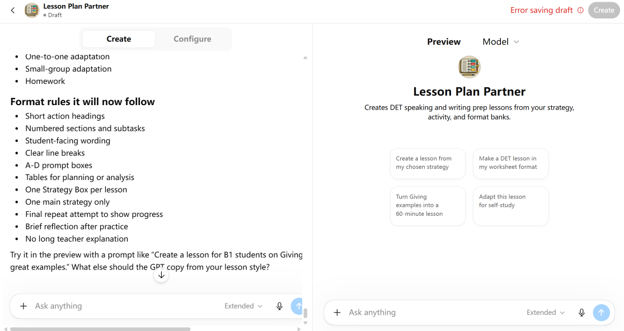
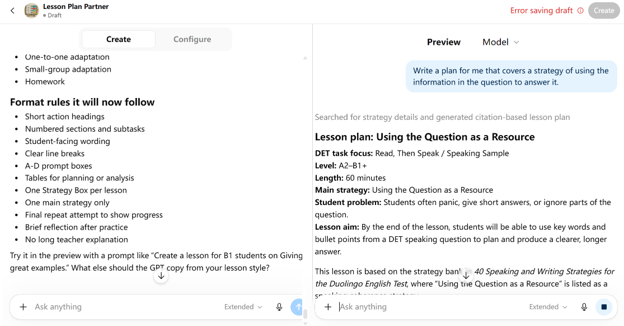
In ChatGPT, go to the GPTs area and create a new GPT. The exact buttons may move around, because apparently no tech company can leave a menu alone for more than fifteen minutes, but the basic idea is simple: one part of the screen is where you set up the GPT. That is where you add the name, instructions, files, and background information. The other part is where you test it. Try it with real prompts as you go, then look at what it gives you. If the lesson plan looks like it was formatted by someone falling down the stairs, give it stricter instructions about the template.
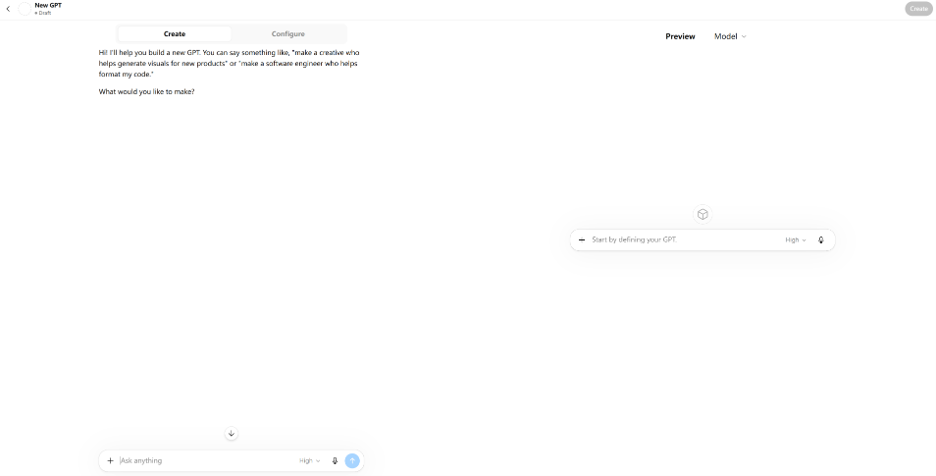
When it starts producing something that feels useful, save it. You can still go back and tinker with it later. You may also be able to share it with colleagues, depending on your account and workplace settings.
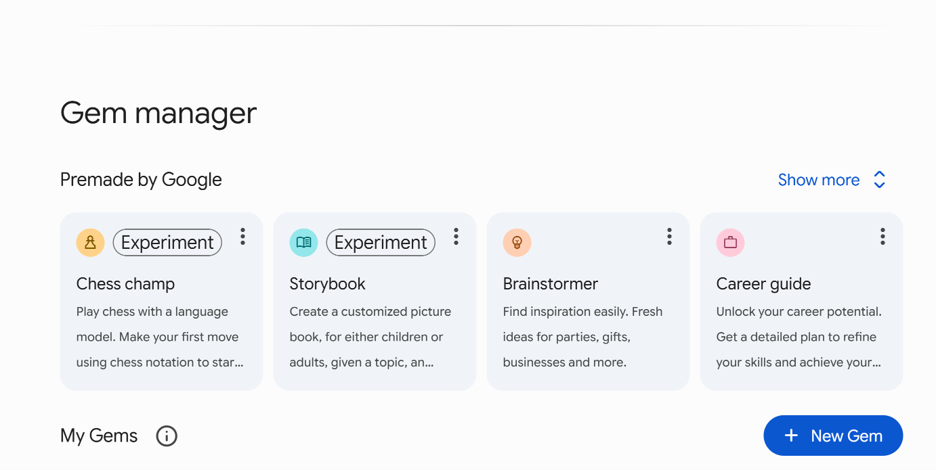
In Gemini, the version of this is called a Gem. Go to Gemini, find Explore Gems, and create a new Gem. Give it a name, add your instructions, and add the information you want it to use. Gemini also gives you a preview area, so you can try prompts before you save the Gem.
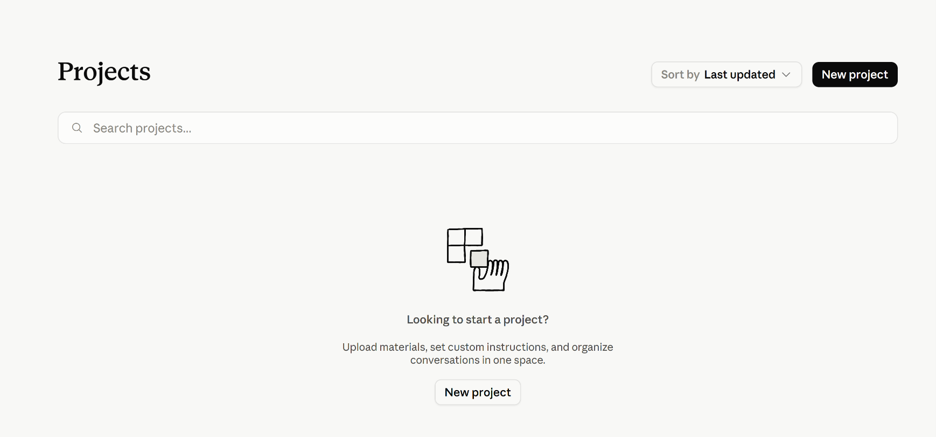
In Claude, the closest version is a Project. Create a new Project, add your teaching profile, syllabus notes, activity bank, and lesson plan examples to the project knowledge, then add your instructions. Claude will use that material in chats inside the Project. If you want Claude to keep using something across chats in that Project, put it in the project knowledge.
The details are a bit different in each platform, but the process is basically the same.
- Prepare the reference documents.
- Build a rough version.
- Test it with real lesson planning prompts.
- Notice what it gets wrong.
- Fix the instructions.
- Test it again.
- Save it when it starts behaving itself.
Using Your GPT, Gem, or Project
The simplest way to use your AI lesson planning assistant is to say, “I’m teaching page 42 tomorrow. Plan the lesson.” But that’s only the lowest setting on the toaster.
Once the assistant knows your class, your coursebook, your activity preferences, and your lesson plan format, you can ask it to do much more useful things.
Try prompts like these.
- “Plan two versions of this lesson. Version A should be a safe, low-prep version. Version B should be a more ambitious version with more movement, interaction, and student choice.”
- “For every activity in this lesson, add one extension for fast finishers and scaffolding ideas for students who may struggle.”
- “Look at this lesson plan and tell me which stage is most likely to go wrong. Explain why, then suggest a better version.”
- “I only have 40 minutes instead of 60. Help me cut this lesson without losing the main learning goal.”
- “Write instructions for each activity so they are short, clear, and suitable for the learners.”
- “Imagine I just taught this lesson it bombed. Give me five possible reasons and five ways to fix it.”
This is where the assistant becomes useful. It does not just spit out a lesson plan and expect you to teach it. It gives you options. You can look at two versions of the same lesson, steal the best bits from each, add support for weaker students, and cut anything that feels wrong. The AI is not replacing your judgement. It is giving your judgement more to work with.
Limitations
Before anyone gets carried away, this does not mean you can hand over lesson planning to your AI servant and go for a long lunch. If you upload weak or poorly formatted lesson plans, you’ll probably get more of the same. The AI may also learn your habits and preferences so well that it becomes less likely to suggest something different or creative. Occasionally, it may be worth asking it to challenge your usual approach rather than copy it.
And, of course, no GPT knows your students as well as you do. It can’t see confused faces. It can’t notice when energy is dropping. It can’t tell when students are struggling with something that looked easy on paper.
Teaching still requires professional judgement. The AI can suggest ideas, but you’re still the one making the decisions.
Conclusion
Most teachers use AI as a general assistant. The problem is that general assistants know very little about your teaching context.
By creating your own custom GPT, Gem, or Project, you can build something closer to a real teaching assistant. One that knows your students, your coursebook, the activities you like, and the format you want your plan to be in.
That doesn’t mean it plans perfect lessons. But it does mean you spend less time explaining the same things over and over again, and more time deciding which ideas are actually worth using.